> For the complete documentation index, see [llms.txt](https://docs.okup.ai/llms.txt). Markdown versions of documentation pages are available by appending `.md` to page URLs; this page is available as [Markdown](https://docs.okup.ai/okupai-platform/calendar/change-prices-and-min-nights.md).
# Change prices & Min nights
This page explains how to **view and edit prices and minimum nights directly from the calendar**.
It is designed for **fast, day-to-day control**, while staying fully synchronized with all connected platforms.
***
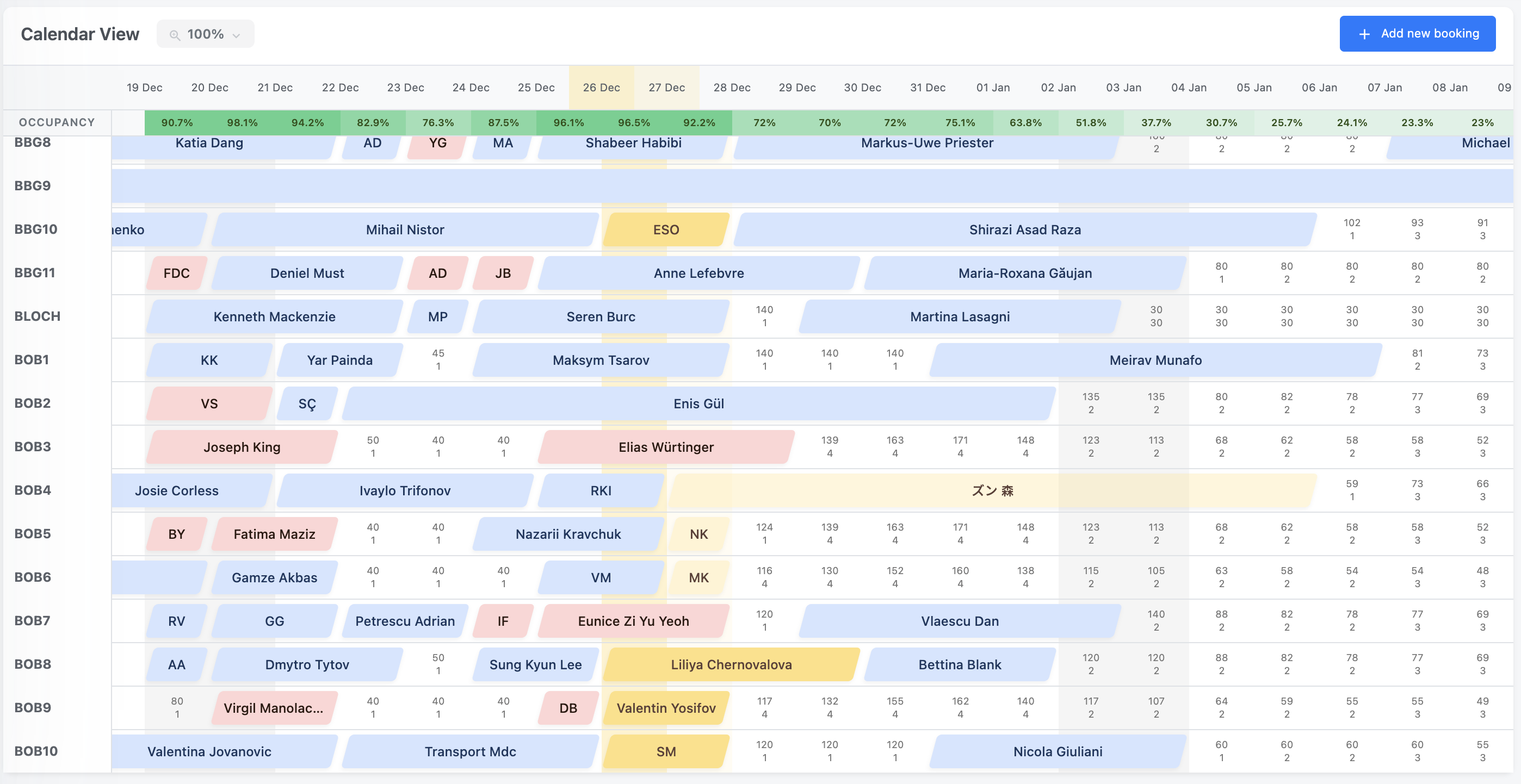
### 🗓 Calendar values
On nights **without an active booking**, the calendar shows:
* **Price** for that night
* **Minimum nights** required for arrival on that date
All values are shown **per unit and per day**.
***
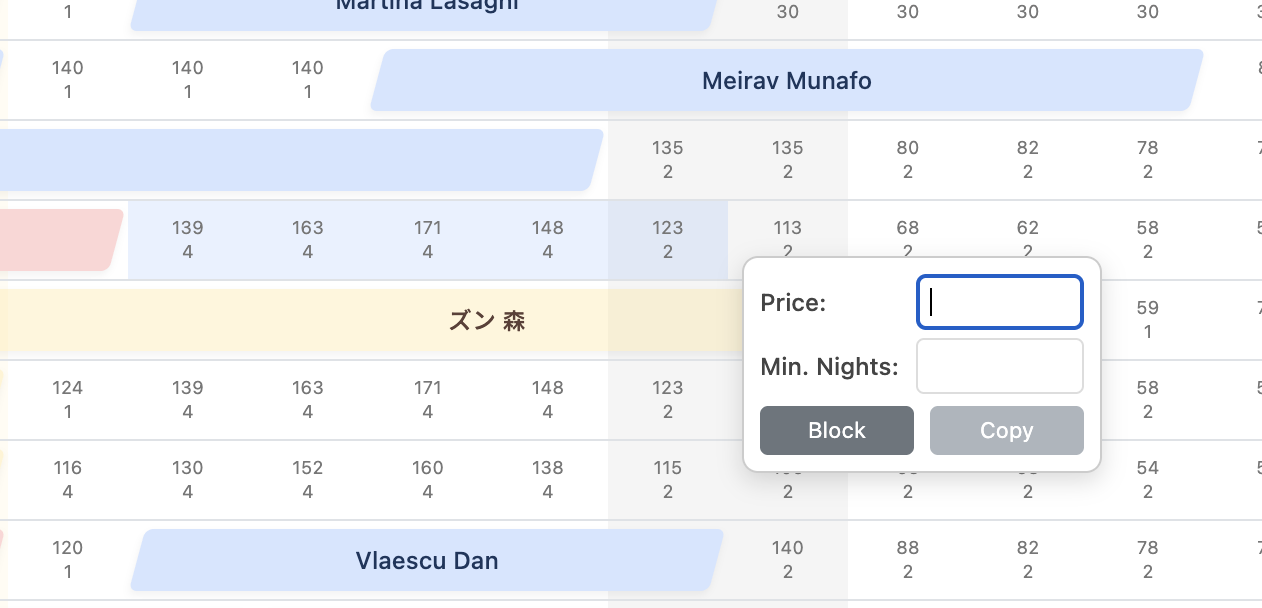
### ✏️ Editing prices and minimum nights
To change prices or minimum nights:
1. Select **one or multiple dates** (for one unit at a time)
2. Enter the desired **price** and/or **minimum nights**
3. Press **Enter** to confirm\
— or **Escape** to cancel
Once confirmed:
* the change is applied immediately
* it is synchronized to **all connected platforms**
***
### 💹 Using pricing software (PriceLabs, etc.)
If you are connected to a pricing tool such as **PriceLabs**:
* Prices shown in the calendar come from that pricing software
* Prices are usually synchronized **once per day**, often during the night
See PriceLabs for how to connect it and get the most out of dynamic pricing.
#### Important
Manual changes made in OkupAI:
* remain active **only until the next pricing sync**
* may be **overwritten** by the pricing software
Use manual edits for **temporary adjustments**, not long-term pricing logic.
***
### 📋 Copying prices and rules
The **Copy** option lets you duplicate prices and minimum nights:
1. Select a range of dates
2. Click **Copy**
3. Select another date range of the **same length**
4. Paste the values
To cancel copying at any time, press **Escape** on your keyboard.
***
### 🧮 How prices are calculated
Prices shown in the calendar are:
* the **final nightly price** displayed on booking platforms
* **inclusive of taxes** configured as included on the platform
* **exclusive of extra fees**, such as:
* cleaning fees
* spa or add-on services
> City tax may be included or excluded depending on your platform configuration.\
> Always verify tax settings directly in your platform account.
***
### 🌙 Understanding minimum nights
Minimum nights are applied **on arrival**.
Example:
* Minimum nights = **5** on **January 1st**
* A guest arriving on January 1st must book **at least 5 nights**